 Stratum
What's New in Stratum 1.5
Stratum 1.5 helps you choose the analysis and makes your rows easier to work with. Guide Me picks a method and draws it. A row you select, mark, label or color shows up the same way on every chart. A survey with a thousand columns gets an index you can search. Every predictive model can now be scored on rows it never saw.
Stratum 1.5 is out now on Mac and Windows. If you already have Stratum, choose Check for Updates… (in the Stratum menu on Mac, the Help menu on Windows). New users get 1.5 from the download page. Here's what's new.
Guide Me: pick the question, Stratum picks the analysis
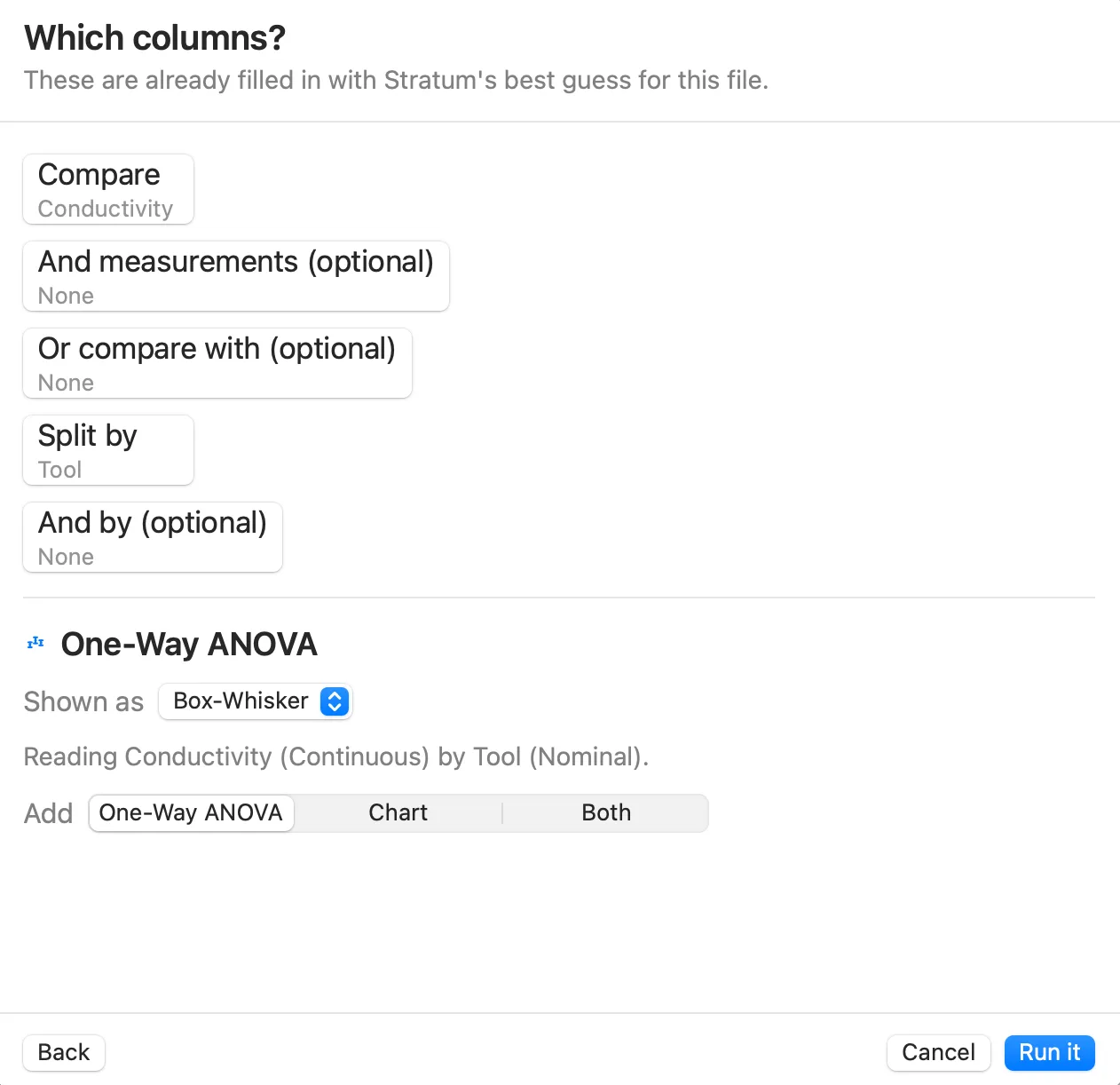
Guide Me is in the toolbar and at the top of the + menu. It starts with what you want to find out: describe your data, compare groups, see how two things relate, predict one column, or watch a process. Then it asks which columns hold the answer, with its best guess for your file already filled in. Before you commit, it names the analysis it chose and what it read to get there, for example Reading Conductivity (Continuous) by Tool (Nominal). It only asks a follow-up question when the file can't answer it and the answer would change the result.
The suggested chart is chosen for your data, not just for the analysis. The number of rows in each group decides between points, a box and a violin. A date on the horizontal axis gets a line over time. A third measurement gets a bubble chart. A scatter with thousands of points becomes a 2D density, and a paired comparison is drawn as pairs. When several charts fit equally well, Shown as lists them and you choose. Add builds the report, the chart, or both.
Your rows show up on every chart
Select rows on one chart and see them everywhere
Click, Shift-click or drag across points to select their rows. The data sheet highlights those rows and every other chart dims the rest. Bars, histogram bins, mosaic tiles and boxes shade the selected share, so you can see where a cluster from a scatter falls in a distribution. Data ▸ Rows adds Select Matching, Invert Selection and Subset to New Dataset, and they all act on the same selection. Right-click any point and choose Reveal in Datasheet to jump to its row.
Mark the rows that matter, and name them
Mark Selected Rows (⌃⌘M on Mac, Ctrl+M on Windows) works like a highlighter that doesn't fade. Every chart rings those points, the legend has a key for the ring, and the data sheet highlights the rows. The mark is stored on the row itself, so it stays with the row through sorts and edits and is saved with the file. You can filter on is marked, sort marked rows to the top, or use marked() in a formula.
A new Labels control names points from one or more of your columns. It's available on Scatter, Bubble, Trend, Q-Q, Box-Whisker, Parallel Plot, PCA Biplot, the regression diagnostic plots and the control charts. You can label every point, only marked rows, only the points the chart flags (outliers, out-of-control subgroups, residuals beyond ±3), or the end of each line. To move a label, drag it. The other labels make room, a leader line connects it to its point, and the chart saves the position.
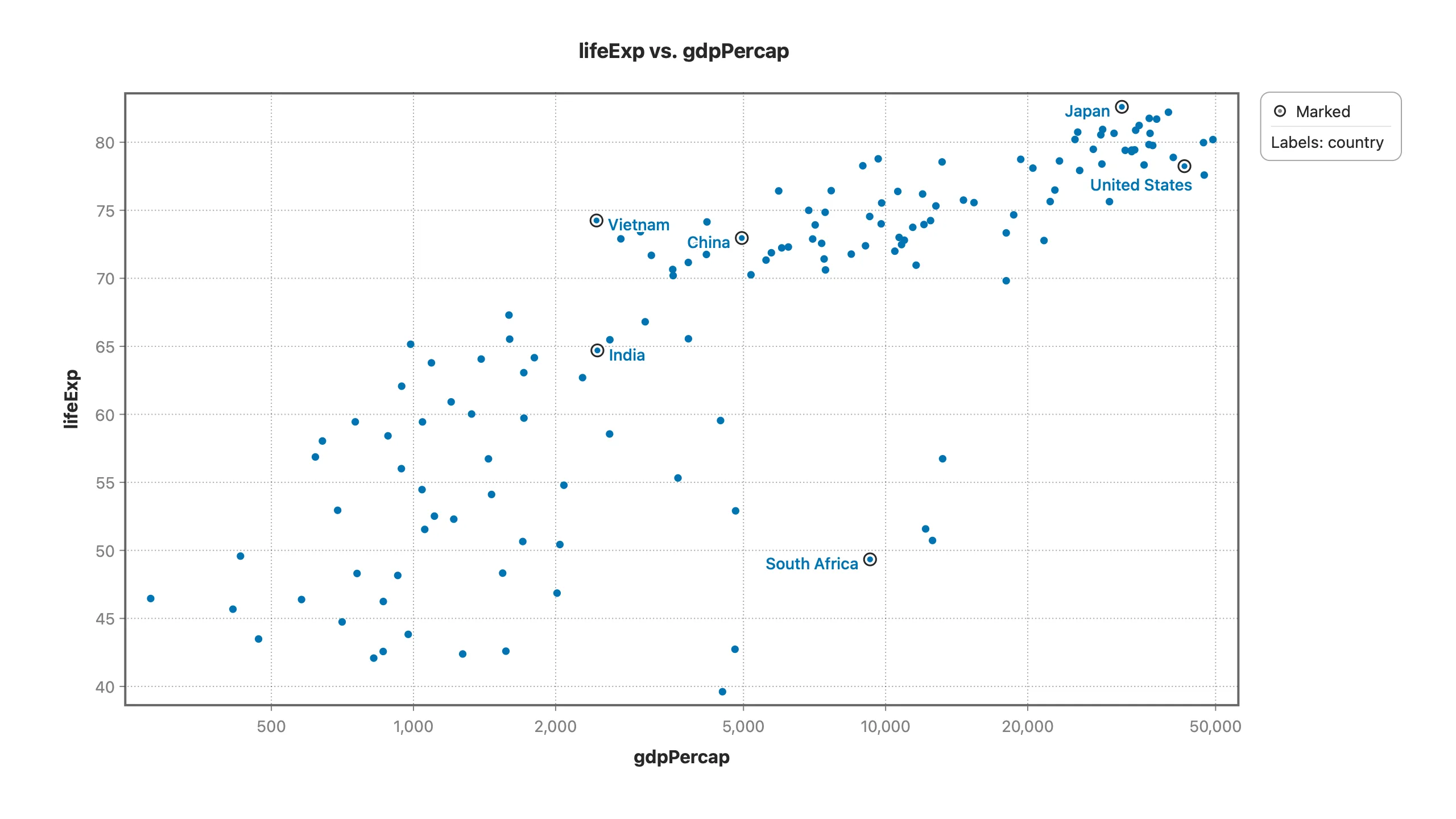
country column on this chart and on every other chart of the same data.Color and shape points by row or by column
You can give individual rows their own color or marker, or color every row by a column with Color by Column…. For a category, each level uses the color you set under Column Definition ▸ Colors & Markers. For a measurement, points are shaded along Viridis or between two colors you choose, with a color bar showing the values. Every point chart uses these colors without splitting its analysis into groups, so a regression line stays one line. The data sheet shows each row's color and marker next to the row.
Wide files are easier to work with
An index of every column, down the side of the data view
A new rail on the left of the data sheet lists every column by its label. Click a column to jump to it. Its details appear below the list: type, measurement level, value labels, level order, missing-value codes, and count, min, max, mean and standard deviation where those apply. The search box matches any part of a name or label and accepts type filters. On the 2018 General Social Survey, 1,109 of the 1,146 variables are stored as coded whole numbers, and typing /f lists only the 37 real measurements.
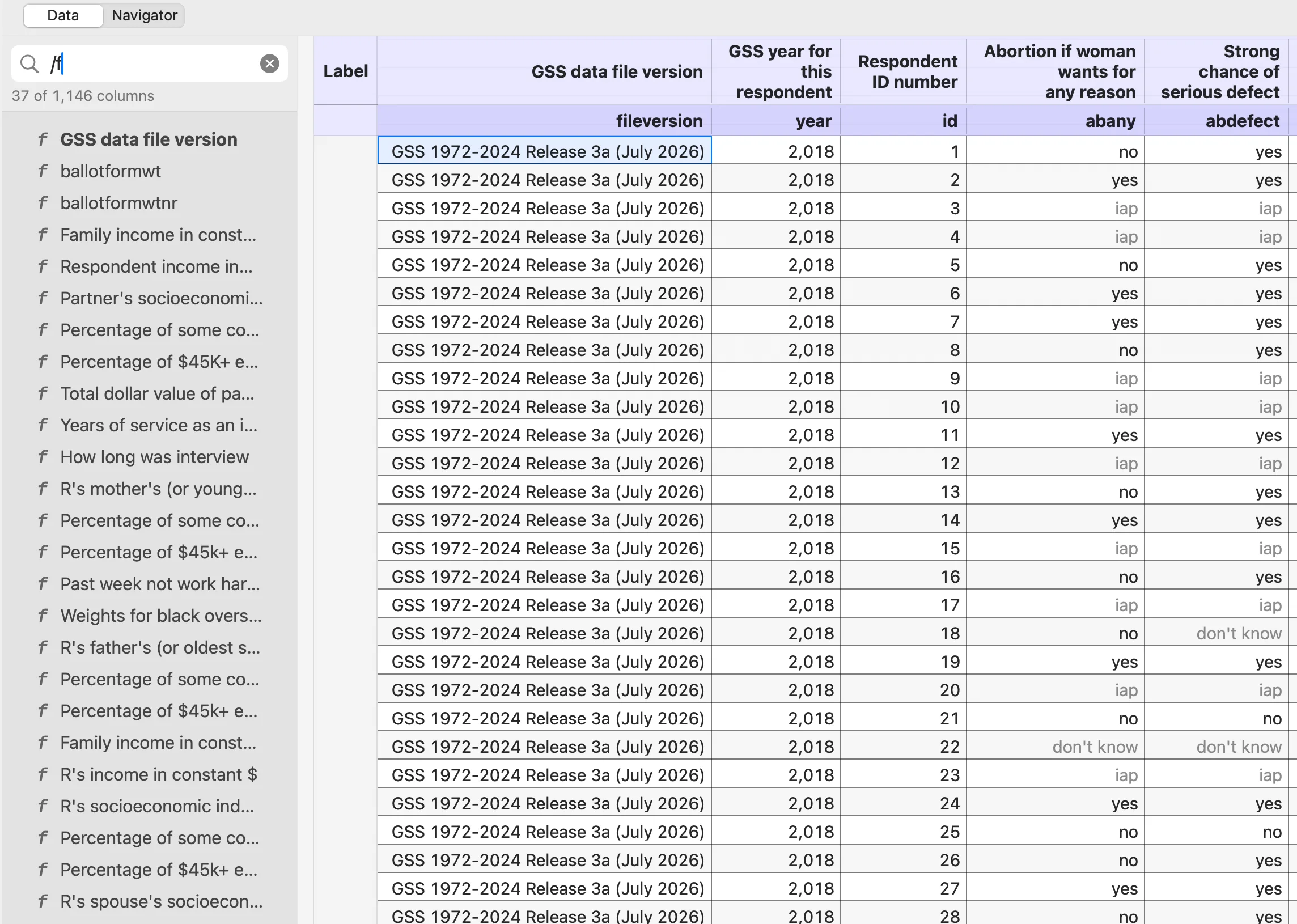
/f in the rail lists the 37 real measurements among the GSS's 1,146 variables.Stratum tells measurements apart from group codes
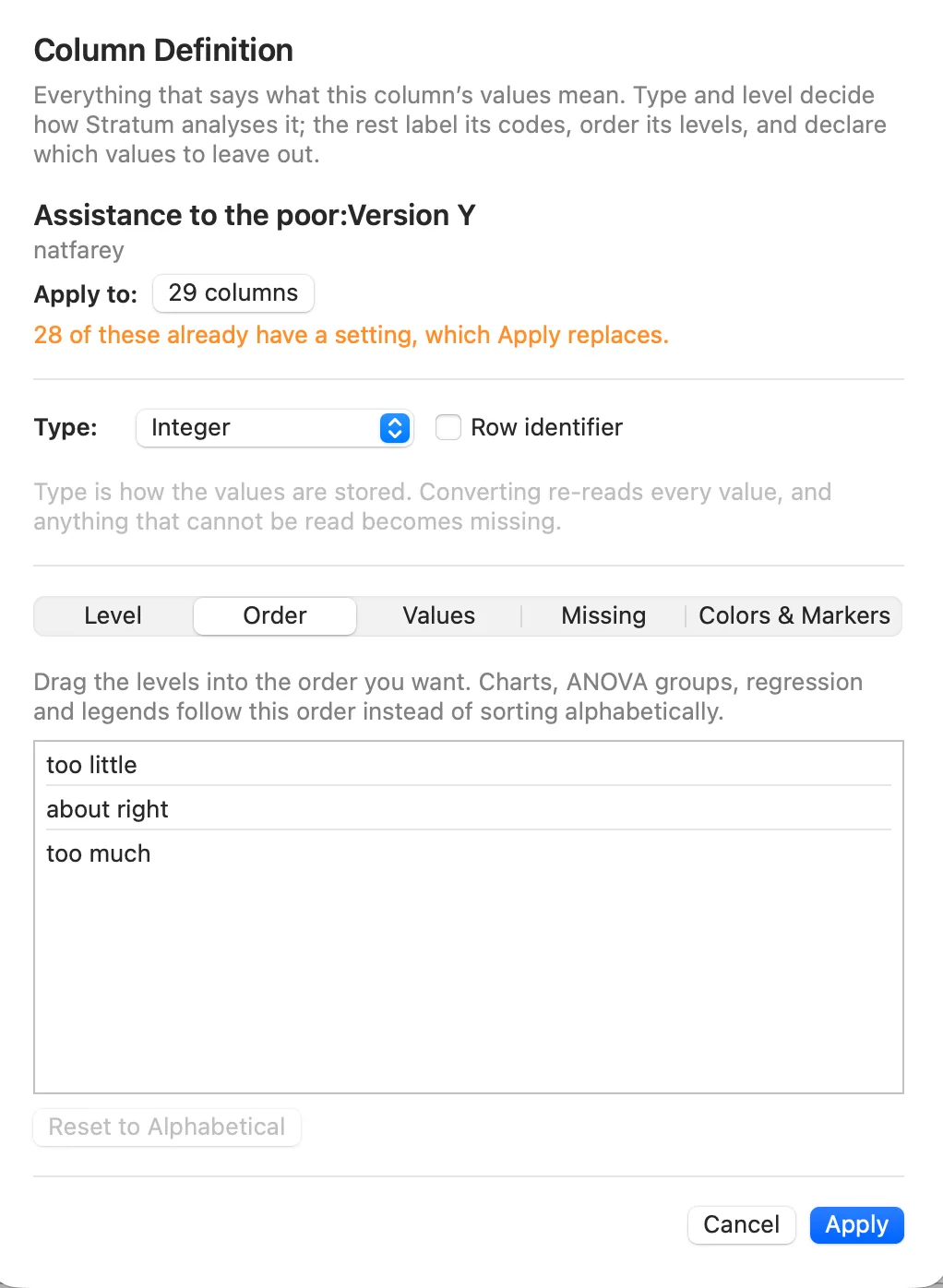
Every column now has a measurement level: Continuous, Nominal or Ordinal. Stratum works it out from the values in the column, not from how they happen to be stored. A machine number coded 1/2/3 is offered as a grouping column rather than averaged. A row ID is offered neither as a measurement nor as a grouping column. If Stratum gets a level wrong, you can change it on as many columns as you like at once.
One sheet for everything that defines a column
Column Definition… now holds a column's type, measurement level, level order, value labels, missing-value codes, colors and markers, and whether it identifies rows. Apply to sends your changes to every column you tick, so a survey's forty Likert items can be declared ordinal in one pass. Select columns in the rail or the Navigator and right-click them to get the data sheet's column menu: Stack, Split, Aggregate, Format, Rescale and Column Definition all open with your selection already ticked. The Navigator also shows whether each column's levels are ordered and where its missing-value rule comes from.
Files with more than one header row
When the rows under the column names hold words and the data below holds numbers, as with a units row or a survey export's sub-labels, Stratum reads those rows as header and keeps them as Column Identifiers. Stack Columns carries those identifiers into the stacked dataset. A survey's rating columns stack into rows labeled with the names from the header, not just the column names. If you're working with SPSS files, Open an SPSS .sav File covers the import.
Models scored on data they haven't seen
Decision Tree, Boosted Trees, Random Forest and Linear Regression now have Validation and Test Set controls. Test rows are never used to fit the model. They're scored once on the finished model. Held-out rows are drawn evenly from every class. Boosted Trees draws a real validation curve and can stop early at its lowest point. Save as Column saves a split as a Validation column that any other model can reuse.
The new Model Comparison report lists every fitted model of the same response side by side, with training, validation and test error, plus test AUC for a two-class response. When the models held out the same rows, it marks the one with the lowest test error.

Regression also reports how well a model predicts, not just how well it fits. The Fit Summary adds predicted R², PRESS and the Durbin–Watson statistic. A new Cook's Distance plot shows which observations move the coefficients most, and Predict computes intervals at whatever confidence level you set. Reading regression diagnostics explains what these plots tell you.
More of the statistics SPSS users expect
Contingency tables that match SPSS CROSSTABS
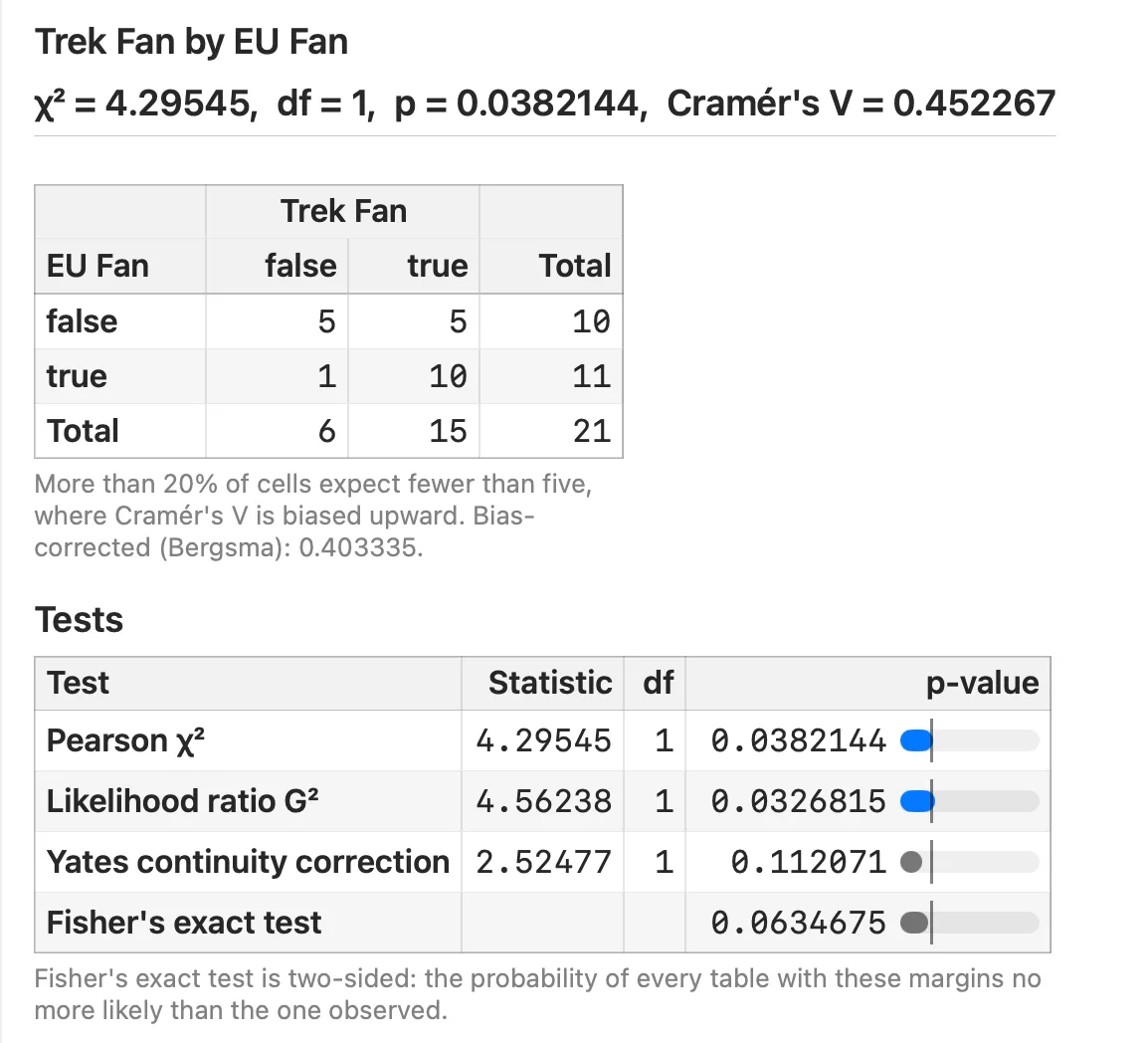
The Statistics option adds the likelihood-ratio test, phi and the contingency coefficient alongside Pearson's χ² and Cramér's V. On a 2 × 2 table it also adds Yates's continuity correction, Fisher's exact test, and the odds ratio and relative risks with 95% confidence intervals. Residuals shows each cell's standardized residual under its count, so you can see which cells drive the association.
Correspondence Analysis, PCA, correlation and clustering
- Correspondence Analysis now reports the χ² test, Cramér's V and total inertia. For each category it shows its share of the inertia, and its contribution and cos² on every dimension, so you can see which categories define each axis and which ones the map represents well. It also drills down to a scree plot. New to the method? Read What Is Correspondence Analysis?
- PCA reports the Kaiser–Meyer–Olkin measure of sampling adequacy, overall and for each variable, and Bartlett's test of sphericity. These are the checks SPSS prints before a factor analysis. For more on reading the output, see Reading a PCA You Didn't Write.
- Ordinal columns, such as a Likert item or a grade stored as words, can go straight into a correlation matrix. They're ranked in the level order you set, so Spearman and Kendall use that order.
- K-Means drills down to Cluster Centers, which shows each cluster's size and center on every variable. Centers are in the variable's original units, even when the clustering ran on standardized values.
Quality control
On a control chart, right-click a point and choose Exclude Point from Limits to keep a known special cause out of the limit estimate. The point stays on the chart, drawn hollow, and is still checked against the limits. K Sigma draws limits at 2.5σ, 2σ or any width you choose. P, NP, C and U charts accept a known p, c̄ or ū as Custom limits.
Cp, Cpk, Pp and Ppk now come with confidence intervals at 90%, 95% or 99%. That tells you whether a Cpk of 1.4 from thirty parts is really above 1.33. The capability report also flags data that fail an Anderson-Darling normality check. An optional 1.5σ shift adds the long-term Z and DPMO that the Six Sigma convention uses. Process capability explained covers the indices themselves.
Shorter control bars, and a tour of your own window
Related settings on each chart's control bar now sit behind one button, and the button's second line shows the current setting. For example, a control chart's limits read Baseline: Before · 3σ. The control-chart bar goes from sixteen controls to ten, and Process Capability goes from thirteen to eight. Settings that only change appearance, such as a pie's Donut option, are now in a new Display section of the Chart Inspector.
The Guided Tour is seven short steps that highlight each part of your actual window. Each step has a Try it button that performs the step on your data: it colors a scatter by a column, splits it into panels, and marks and labels points. You can reopen the tour any time from Help ▸ Guided Tour.
.stratum document, and your data never leaves your computer.
How to get it
If you already have Stratum, choose Check for Updates… and the built-in updater installs 1.5. If you're new to Stratum, the download is already 1.5, and the free 25-lesson tutorial is the quickest way to learn it. Everything in this post works on both Mac and Windows.